
Widgets
The next ship, on your Home Screen and Lock Screen.
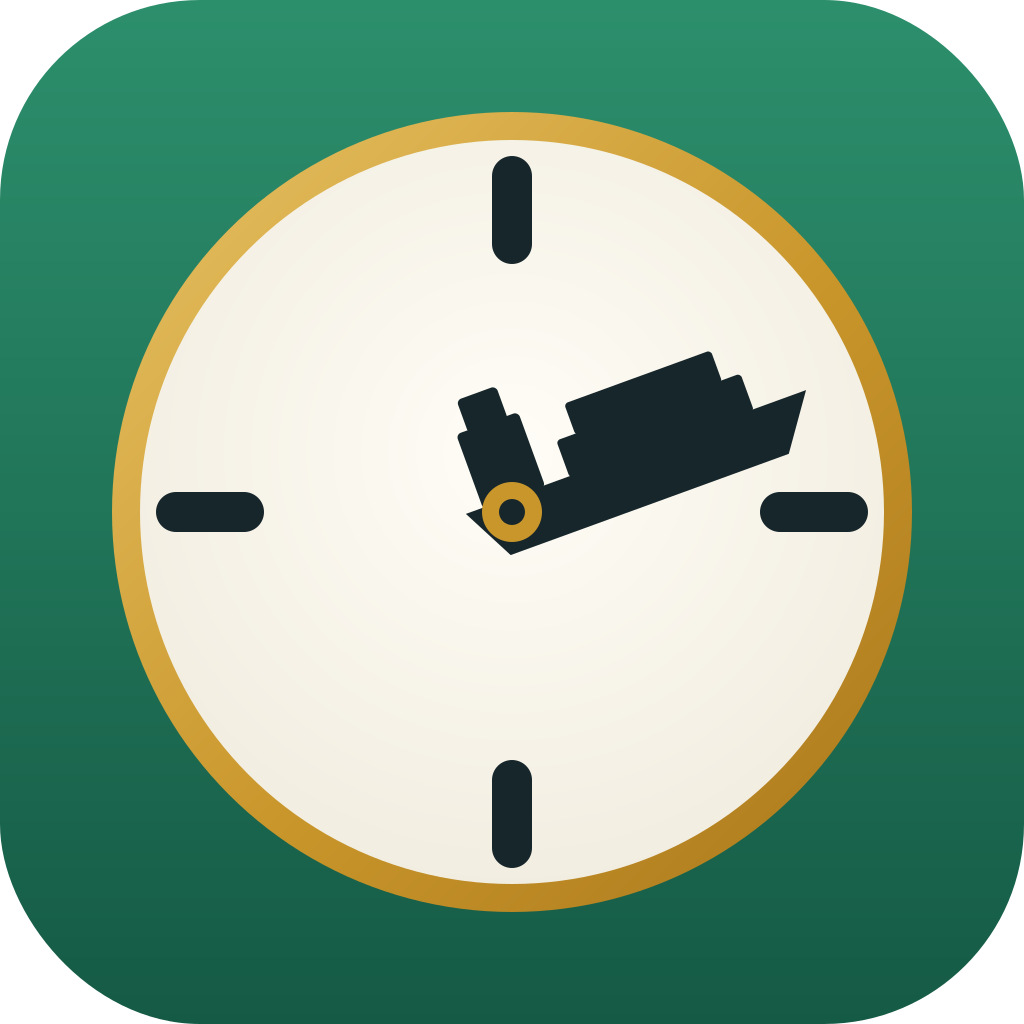
Glance, don't open. The Ship Clock's ship hand points at the next pass; the rim is the tide, coloured by height, laid out by clock position. Every entry is a real clock time.
How to add one
Home Screen
Touch and hold the Home Screen, tap Edit, then Add Widget. Search for Ship O'Clock and pick a size. Small is the Ship Clock or Next Ship; medium adds the tide, wind and weather; large is the whole board.
Lock Screen
Touch and hold the Lock Screen, tap Customize, then the widget area under the clock. Add the circular ring (minutes to the next pass), the rectangle (time, ship, tide and wind) or the inline line above the clock.
Pick the pin
Touch and hold a widget and tap Edit Widget to choose which of your pins it watches. Widgets refresh on iOS's schedule; open the app once to nudge one along.
Widget renders match the app's design spec; ships, times and tides shown are examples.